 Marley Farm
The farm handbook
Save your farm and recover it with a farm code
Save keeps the farm in this browser. A farm code brings back its copy from the site. Keep the code private: anyone who has it can open that farm.
1. Save and find your code
In the game, open Pause → Save. This saves on the current browser. To see your code, open Pause → Farm code and use Copy or write it down. A new farm normally gets its code at the next morning, once its first site backup succeeds. If there is no code yet, keep playing in this browser and reach that morning while connected.
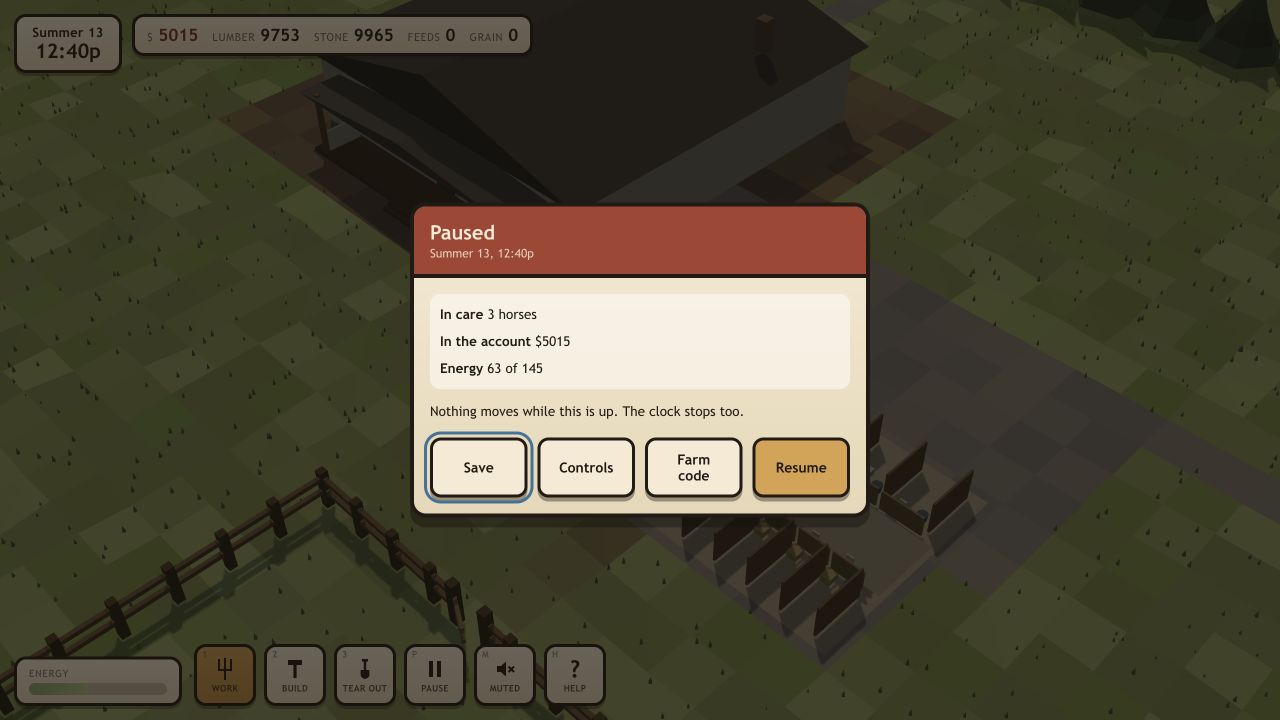
2. Understand backup timing
The browser saves about every thirty seconds and when the page is put away. The game attempts a site backup each morning and when you leave or hide the page. These need a working connection. Pressing Save alone does not confirm a fresh site backup.
The leaving-page backup sends a copy prepared in advance. It can be about one autosave behind, so the last moments of play may not be in it. A closing browser, a failed connection or a backup limit can also prevent it reaching the site. Do not clear the original browser until you have checked the farm on the destination.
For a device change, reach a new morning online, keep the original farm available, and check the day and horses after importing. Avoid playing the same farm on two devices at once.
3. Move to another device
- On the original device, copy the code from Pause → Farm code.
- On the destination, open Marley Farm and dismiss the opening cards. Choose Pause → Farm code.
- Type the code and choose Bring that farm here. Read the confirmation, then choose Bring it here.
- If the destination already has a farm with a code, or is past its first day, the game backs it up before replacing it. If that backup fails, the current farm stays put. When The old farm is kept appears, record its code before choosing Open the brought farm.
- Check the restored day, horses and buildings. Keep the original device unchanged until you are satisfied with the copy.
An early first-day farm without a code has a local recovery copy rather than a guaranteed remote code. Do not use an import as a substitute for recording a code for a farm you want to keep.
4. Choose between conflicting copies
If another device has played the farm further, the game asks which copy to keep. Carry on from there brings the site copy here. Keep this one writes this device’s copy over the site copy. These choices do not merge two farms. Read the days shown and choose deliberately.
5. Recover a missing farm
Open the game in the same browser first. If its recovery cookie is still present and a site backup exists, it may offer to bring the farm back. If you have the code, use the transfer steps above.
- No farm under that code: check every word and the number. A deleted code no longer works.
- Offline or failed request: keep the original browser open, reconnect and try again.
- Too many tries: wait fifteen minutes before retrying.
- Current farm could not be backed up: the import stops without replacing it. Resolve the connection or conflicting copy first.
Private browsing, clearing site data or changing browsers can remove local saves. If both the local copy and the recovery cookie are gone and you did not keep the code, recovery is not guaranteed.
6. Delete a farm
Choose Pause → Farm code → Delete this farm. The first confirmation deletes the site copy and invalidates that code. The next card asks whether to delete the copy on this device too. This is permanent; it is not a way to start a transfer.
If you keep playing the local copy after deleting the site copy, it can be backed up again under a new code. Other devices can still hold their own local copies. See what the game keeps for the full explanation.
For the basics of getting a farm started, see How to play.